Setup and configuration
Logging in
Connect to the server with a web browser
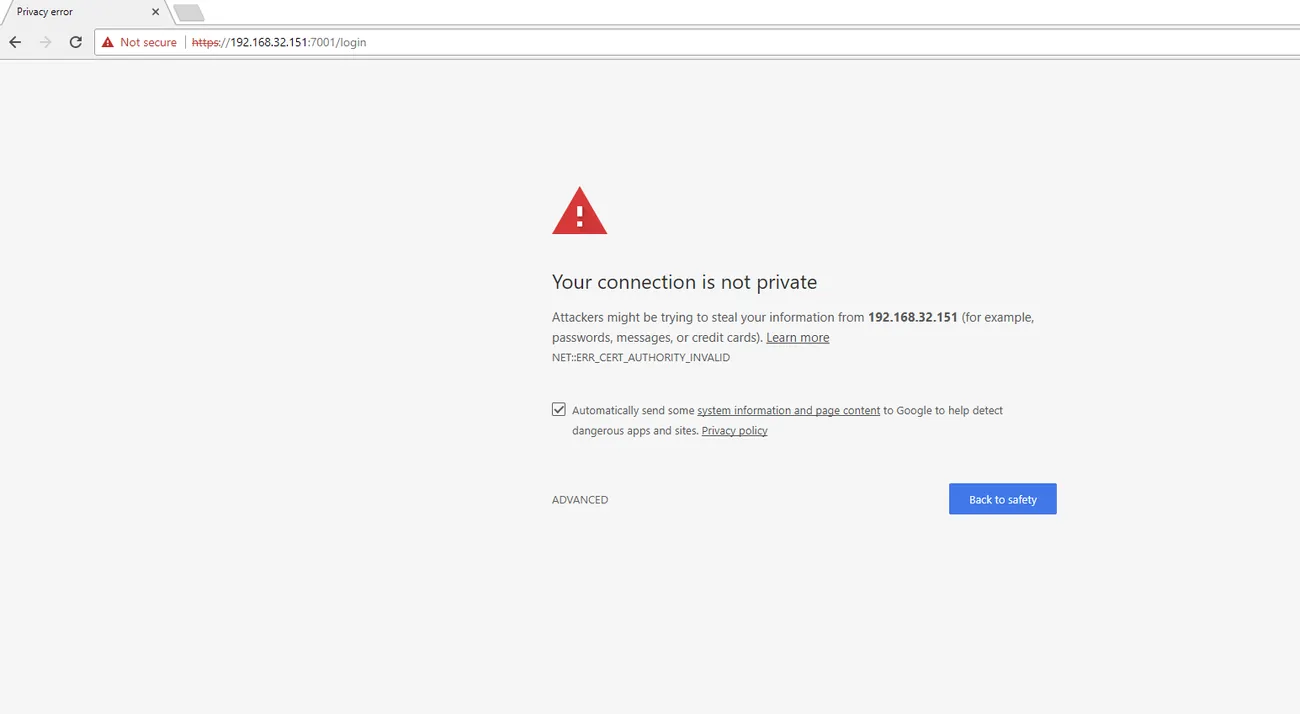
By default the server runs on a port 7001, and requires SSL. You can access the server using https://hostname:7001
Navigating the web interface
- Live View - Web based live view streaming
- Playback - Watch recorded media
- Download remote client - Links to redcherry.ch/download for downloading the cross platform client
- Documentation - Link to online documentation
- Announcements - Recent updates and information
- General settings - Change settings such as the name and location of the NVR, and outgoing SMTP email notifications
- Storage - Easily add and manage storage
- Users - Add and manage who has access to live view, recordings and individual cameras
- Connected users - See who is currently connected to your system
- Devices - Add and manage analog and IP cameras (Note: A Redcherry hardware compression card is required for analog card support)
- Global schedule - Easily select which days and hours your system will record. Choose between motion detection, continuous recording and no recording
- Email notifications - Easily add email notifications rules based on time of day and selected cameras
- Event statistics - Get statistics about the the camera recording schedule
- Database backup - Create or restore a database backup
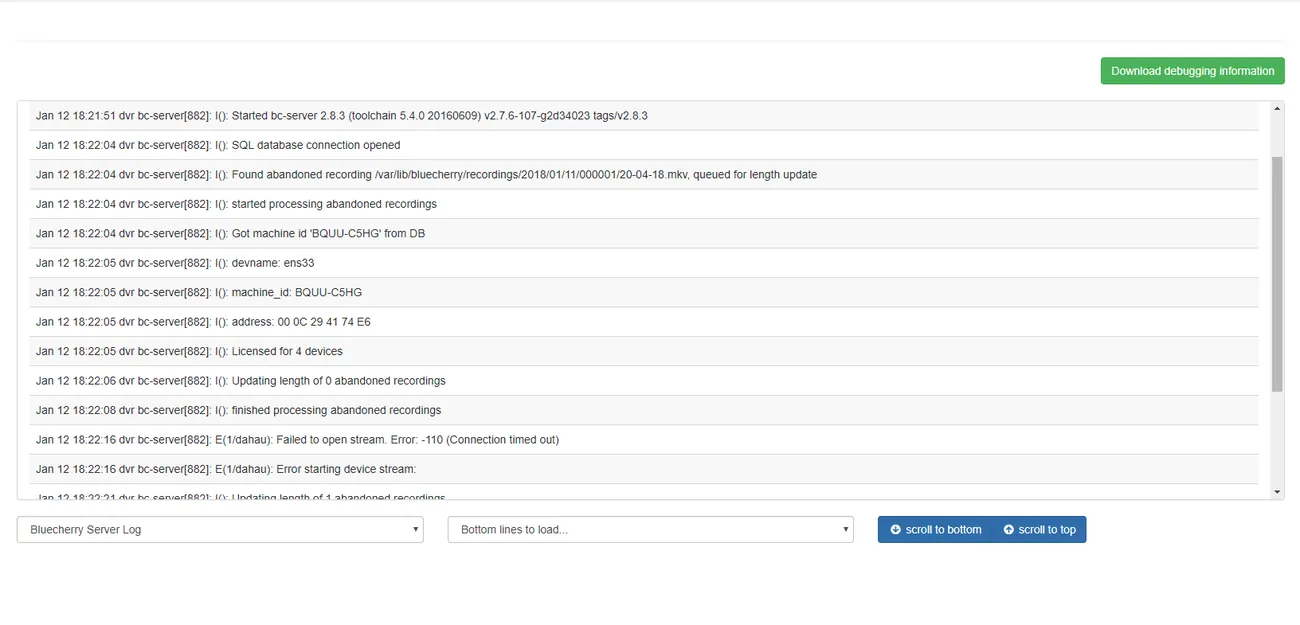
- System Log - Easily view Redcherry logs (both web and Redcherry logs)
- License Keys - Easily add license keys to expand your Redcherry system
- Server statistics - This section shows current CPU, memory and how long the system has been running.
- Profile link - Here you can easily update your profile, reset your password, or simply logout
Recording schedules
We support two types of schedules. The first is a global schedule and the second is a per-camera schedule. Both are covered below
Global schedule
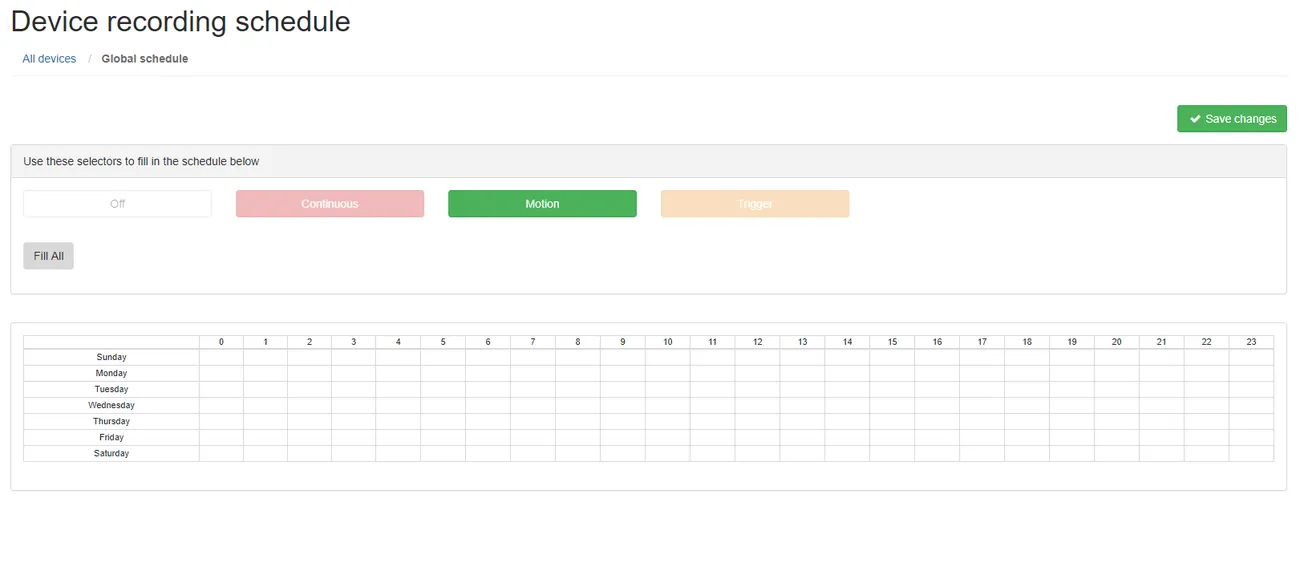
Select ‘Motion’ and then select all the grid locations (Assuming that you want motion detection 24×7×7).
Per-camera schedule
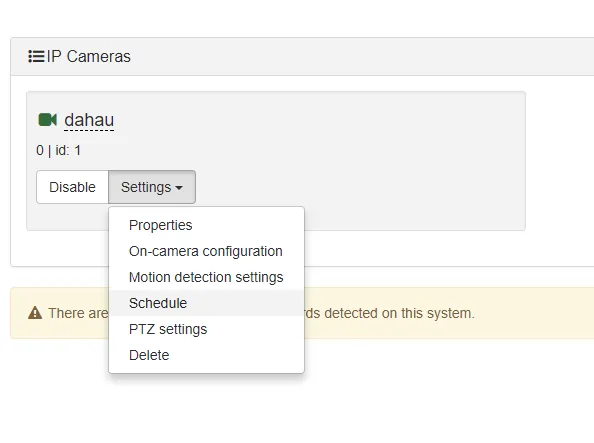
Under the Devices tab, select ‘Schedule’ under each camera that you want to enable a camera specific scheduled recording.
✅ Astuce
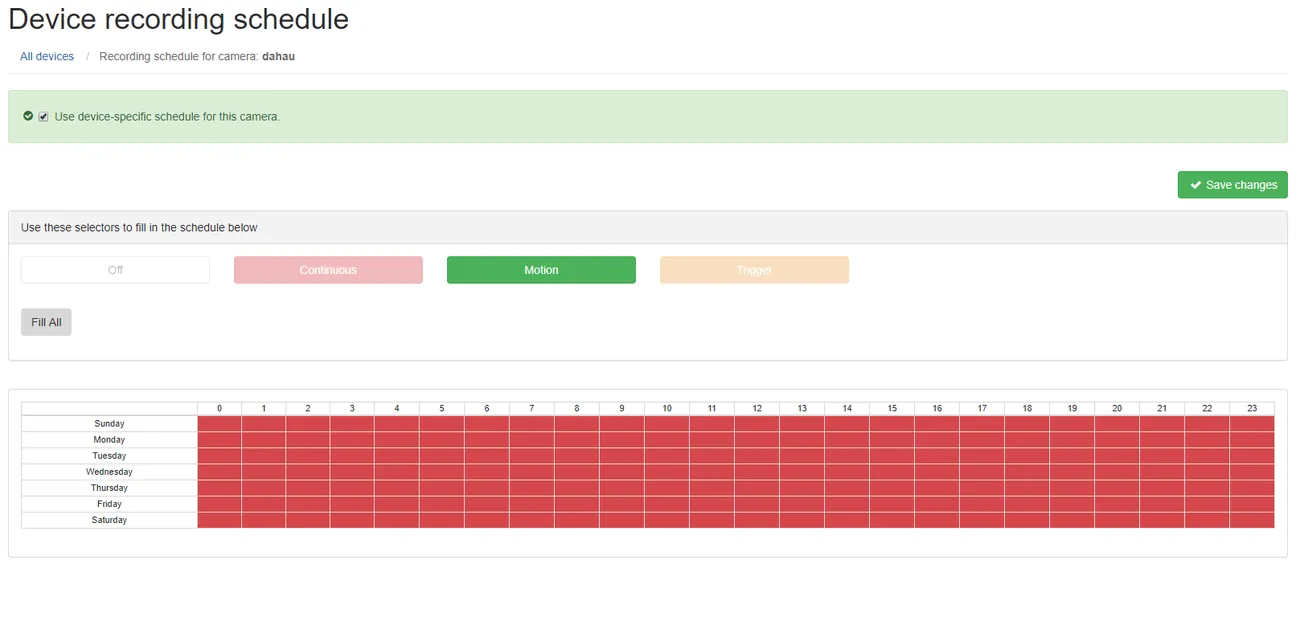
Select the checkbox for ‘Use device-specific schedule for this camera’ and select the type of recording schedule you want and click ‘Save changes’
User management
Adding users
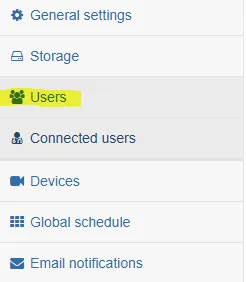
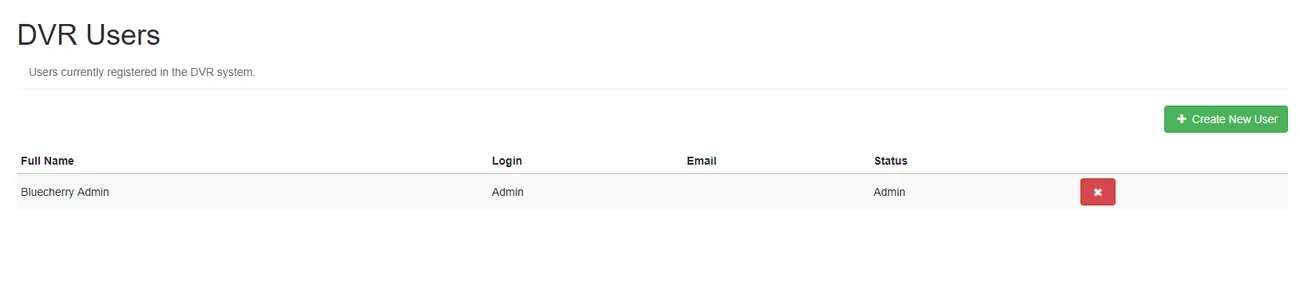
Select ‘Create New User’ to add a new user to the NVR system
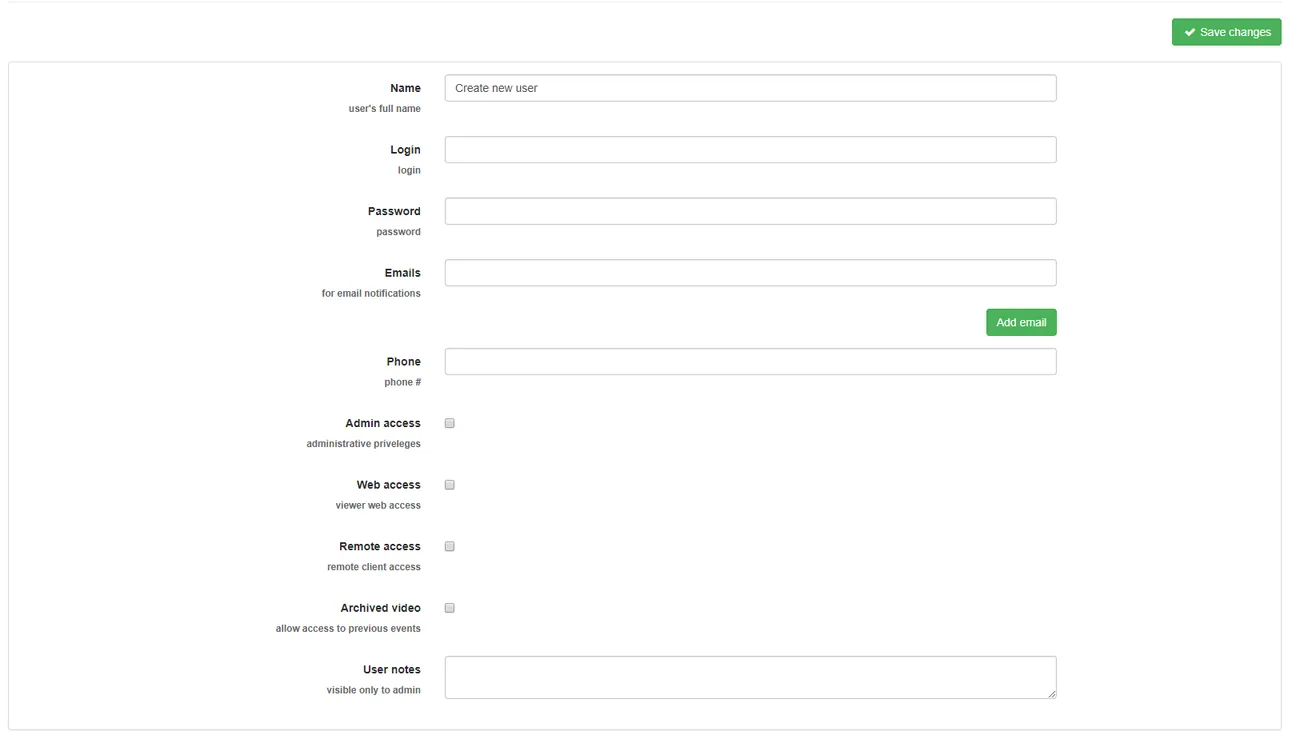
Complete the form with the user specific information. It’s usually recommended to have two administrator accounts, in case one user is delete or the password is forgotten.
Editing / viewing users
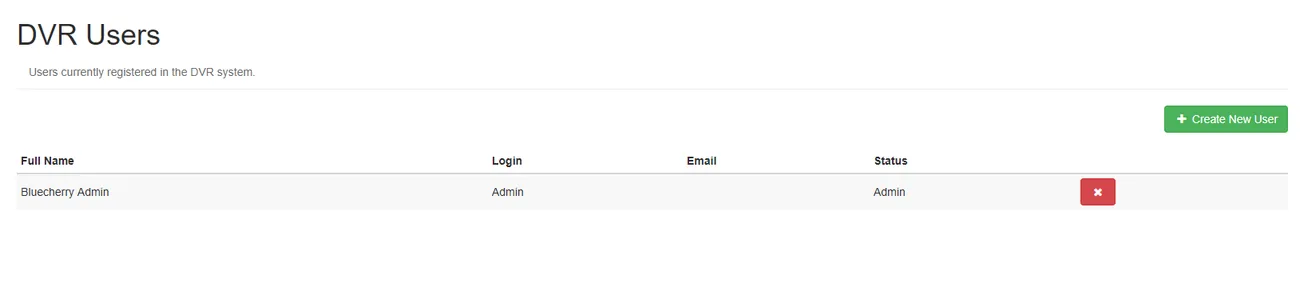
Click on user’s Full Name. Note: To prevent you from accidently removing yourself it is not possible for you to remove the account you are logged in as.
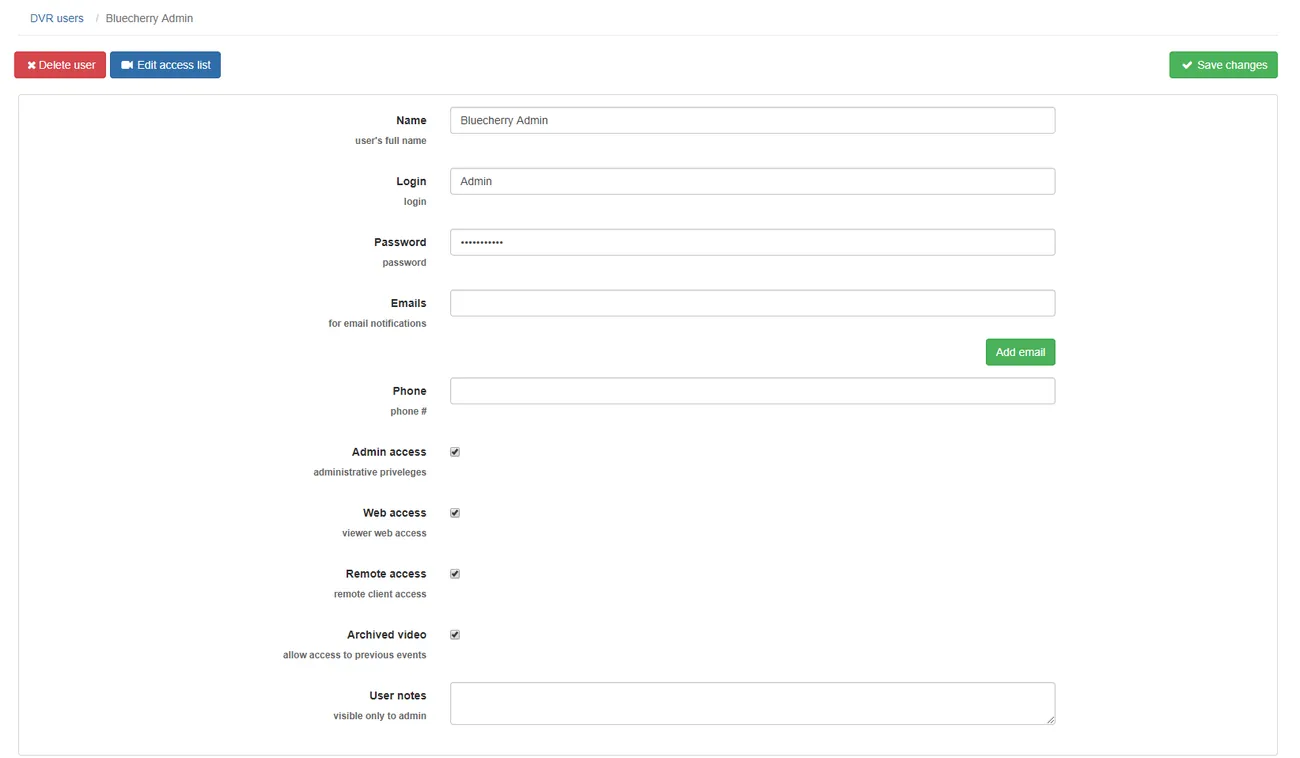
You can the option to change any of the fields above, including the password. You can also add specific restrictions on what the user has access to. The notes section lets you add user specific notes.
Restrict cameras per user
Restricting access on a per-user basis
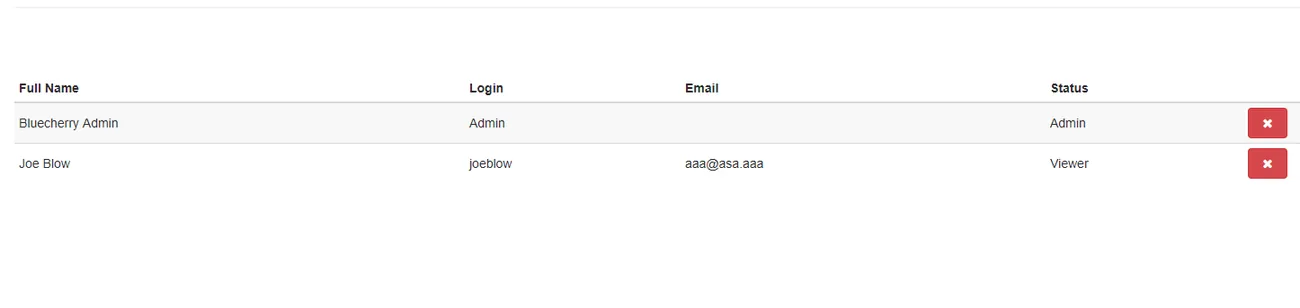
From the ‘Users’ section click on any of the names in the list. For this example, we are going to pick on Joe Blow, who we do not trust.
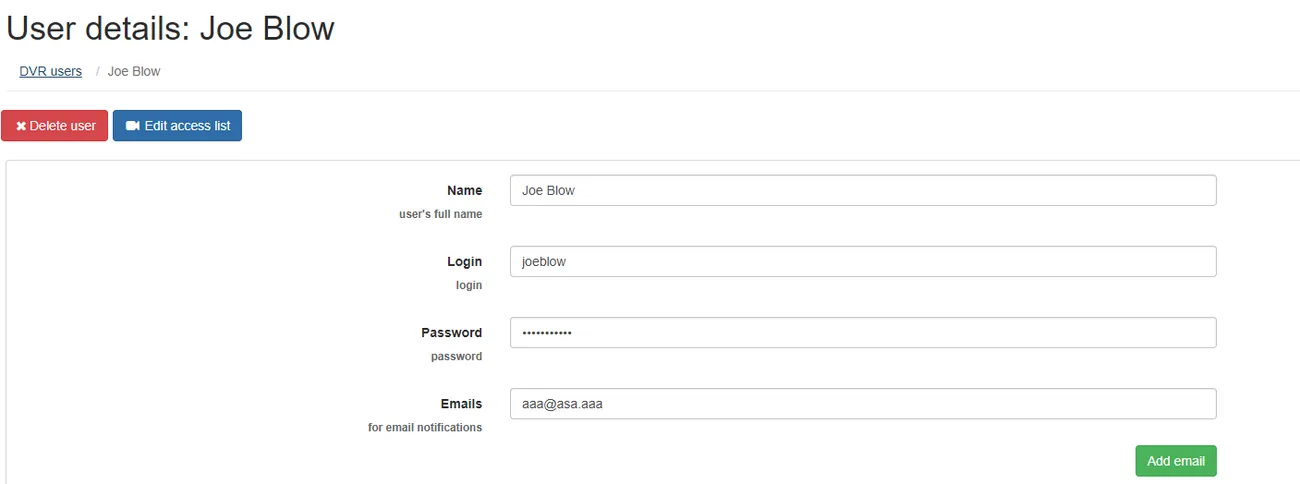
Click ‘Edit access list’
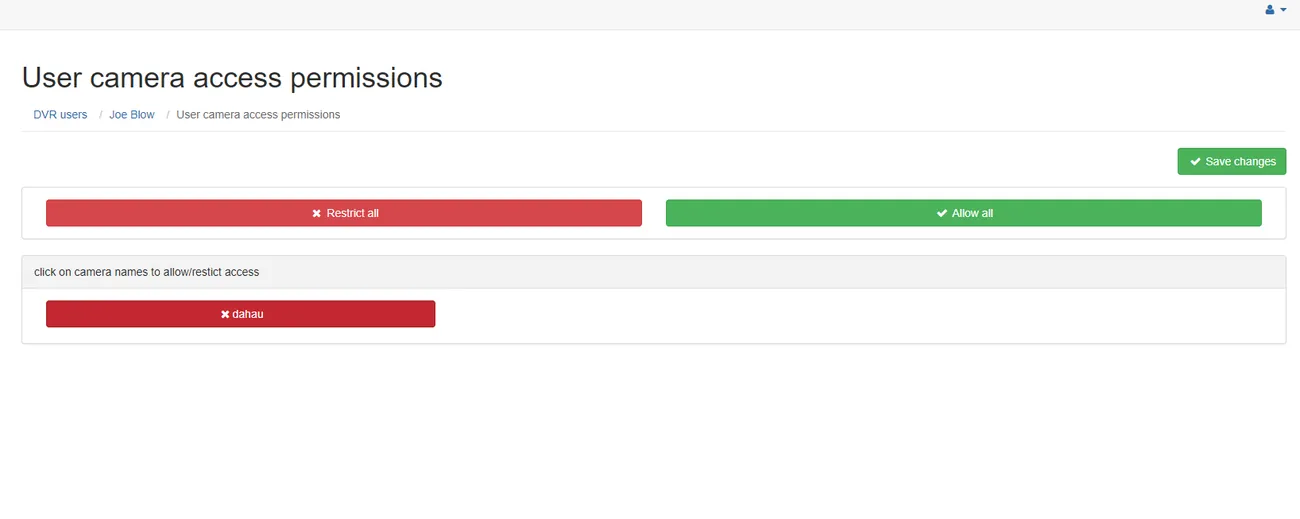
✅ Astuce
By default Joe Blow has access to all cameras. If you d not want him to have access to cameras, simply click on the camera name. This will change the color of the camera from green (full access) to red (no access). Joe Blow will not see the camera in the available video devices, or in the event / search area. Changes are applied instantly.
System logs
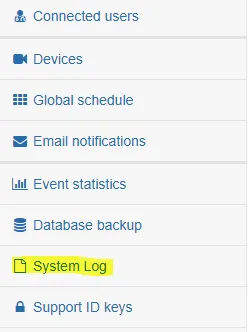
Select ‘System Log’ from the left menu bar
✅ Astuce
This log shows everything that has been logged to /var/log/bluecherry.log and to /var/lib/bluecherry/www-error.log
Note: These logs is randomly rotated, so it will likely not contain all of the logs since the server has started.